
MongoDB Compass SSH Tunnel Not Working? Here's the Fix
An SSH tunnel adds a few moving parts to a connection, and any one of them can break it. Here's how to find which part is failing and fix it.
Short answer: when your MongoDB Compass SSH tunnel is not working, the cause is almost always one of four things - the wrong identity file or key format, a passphrase key entered in the wrong field, an unreachable MongoDB host or port on the far side of the tunnel, or a host-key or authentication mismatch. Work through the checklist below in order and you'll find the broken link fast.
Disclosure: we make Byson, a mobile MongoDB client with built-in SSH tunneling. This guide is about Compass, but the underlying SSH concepts apply to any client, including ours.
Why is my MongoDB Compass SSH tunnel not working?
An SSH tunnel is really two connections stacked together. First, Compass opens an SSH session to your bastion (the jump host) and authenticates with a username and either a password or a private key. Second, the bastion opens a local connection to MongoDB on a host and port that it can reach, and forwards traffic back to Compass. The reason a MongoDB Compass SSH tunnel stops working is that any one of those steps can break independently.
The common root causes fall into a short list: SSH authentication fails because the wrong key or user is used; the private key is in a format or with a passphrase Compass can't read; the MongoDB host and port you entered are not reachable from the bastion; the SSH host key changed or isn't trusted; or a firewall blocks the path and MongoDB is bound to localhost only. The trick is to test the two halves separately instead of guessing.
Checklist: fix the Compass SSH tunnel
- Verify you can ssh to the bastion manually first. Before touching Compass, open a terminal and run
ssh user@bastion-hostwith the same key. If that fails, the problem is your SSH setup, not Compass. Fix the manual login first - everything else depends on it. - Check the identity file path and key format. Compass wants a standard OpenSSH or PEM private key file, not the
.pubpublic key and not a PuTTY.ppk. Point the identity file field at the private key, and if the key is encrypted, put the passphrase in the key passphrase field, not the SSH password field. Mixing those two up is one of the most common failures. See the official MongoDB Compass connection docs for where each field lives. - Use the MongoDB host and port the bastion can reach. The MongoDB host is resolved from the bastion's point of view, not your laptop's. If MongoDB runs on the bastion itself and binds to localhost, set the host to
127.0.0.1and port27017. If it runs on another machine inside the same network, use that machine's internal address. This is the single most misunderstood field. - Separate SSH auth from MongoDB auth. An "Authentication failed" error can come from two different places. The SSH user and key authenticate you to the bastion; the MongoDB username and password authenticate you to the database. They are unrelated credentials. If the tunnel opens but Compass still can't connect, the failure is likely the MongoDB credentials, not the SSH key.
- Resolve host key and known_hosts issues. If the bastion's host key changed (after a rebuild or IP reassignment), SSH refuses to connect to protect you from a man-in-the-middle. Confirm the new key is legitimate, then update or clear the stale entry in your
~/.ssh/known_hostsso the new key can be trusted. - Check the firewall and MongoDB's bind address. If MongoDB is started with
bindIp: 127.0.0.1, only processes on the bastion can reach it - which is exactly why you tunnel. But a firewall on the bastion can still block the SSH port itself. Make sure port 22 (or your custom SSH port) is open inbound, and that MongoDB is actually listening on the host and port you gave Compass. - Mind ed25519 vs RSA and ssh-rsa SHA-1 deprecation. Modern OpenSSH servers disable the old
ssh-rsaSHA-1 signature by default. An older RSA key can authenticate fine in one place and fail in another for this reason. If an RSA key fails, switch to an ed25519 key or confirm the server acceptsrsa-sha2-256andrsa-sha2-512signatures.
Common Compass SSH errors and what they mean
| Error message | Likely cause | Fix |
|---|---|---|
| All configured authentication methods failed | Wrong SSH user, wrong key, or an RSA key rejected by ssh-rsa SHA-1 deprecation | Confirm the SSH username and identity file, test ssh manually, and try an ed25519 key |
| Connection timed out | The bastion or MongoDB host/port is unreachable, or a firewall blocks the path | Check the SSH port is open and the MongoDB host/port are reachable from the bastion |
| getaddrinfo ENOTFOUND | The bastion hostname or MongoDB host can't be resolved by DNS | Use a correct hostname or IP; verify the MongoDB host resolves from the bastion, not your laptop |
| Tunnel connection failed | SSH connected but the bastion couldn't reach the MongoDB host/port you specified | Set the MongoDB host to what the bastion sees, often 127.0.0.1:27017 |
A mobile MongoDB client where SSH just works
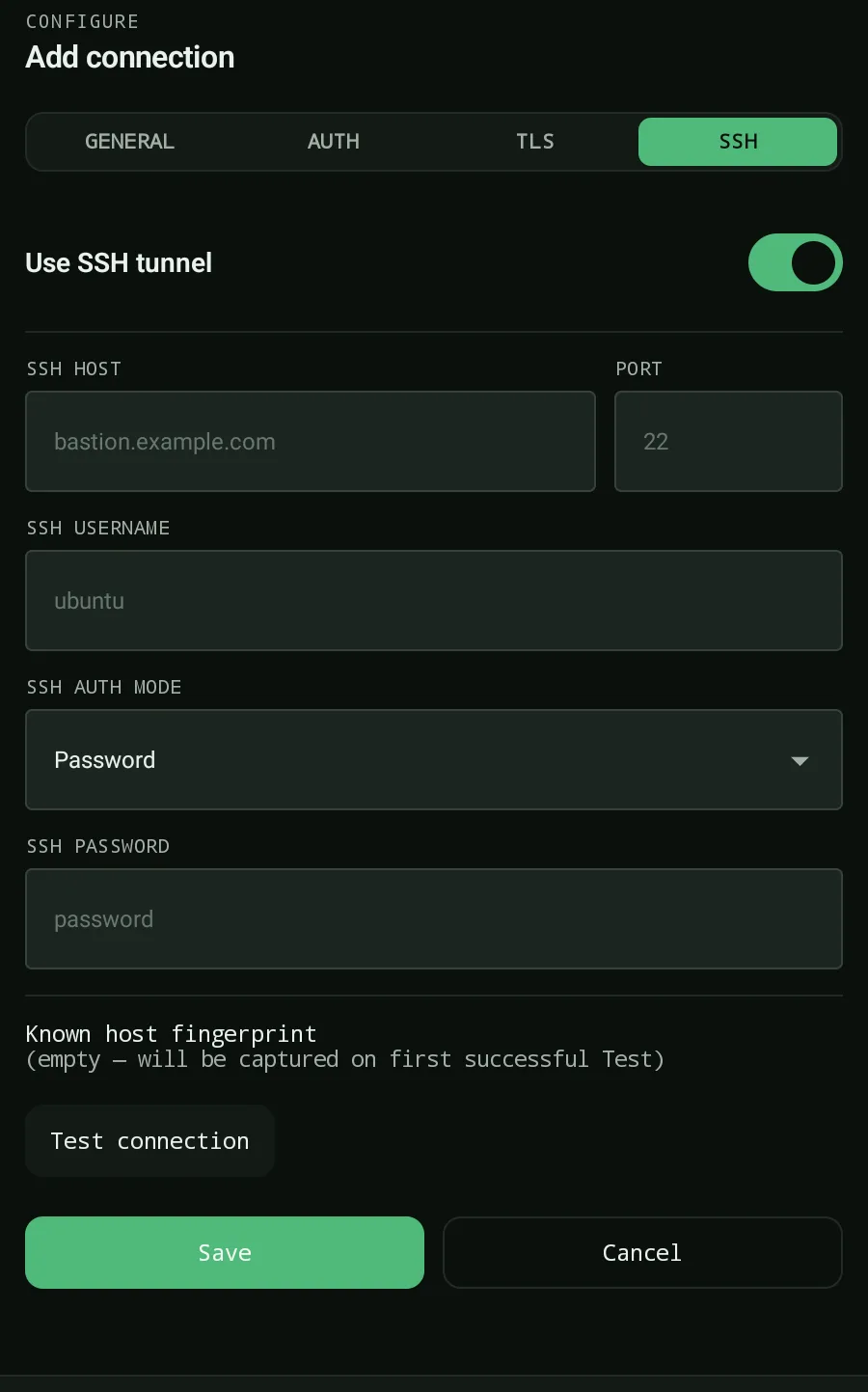
If you want to skip the format and field confusion entirely, Byson has SSH tunneling built in and tries hard to make it painless. It supports SSH auth by password, RSA (with rsa-sha2-256 and rsa-sha2-512), and ed25519 keys. Private keys are normalized in-process, so OpenSSH, PKCS#1, and PKCS#8 key formats all work without you converting anything by hand. Host keys use TOFU (trust on first use) with a clear "host key changed" prompt, and connection errors are written in plain language instead of cryptic stack traces. Byson is free on both Google Play and the App Store.
Connect to MongoDB over SSH from your phone with Byson
Byson is a mobile MongoDB client with built-in SSH tunneling - free on Google Play and the App Store. Password, RSA and ed25519 keys, automatic key normalization, and TOFU host-key trust built in.
FAQ
Why is my MongoDB Compass SSH tunnel not working?
Most Compass SSH tunnel failures come from one of a few causes: the wrong identity file or key format, a passphrase typed in the wrong field, the MongoDB host and port being unreachable from the bastion, or a host-key or authentication mismatch. Confirm you can ssh to the bastion manually first, then check that the MongoDB host is what the bastion can reach (often 127.0.0.1:27017 from the bastion's view) and that your SSH key and MongoDB credentials are entered in the right places.
Does Compass support ed25519 SSH keys?
Compass works with standard OpenSSH private keys, including ed25519 and RSA. ed25519 is the safest choice because modern OpenSSH servers deprecate the old ssh-rsa SHA-1 signature, which can make older RSA keys fail to authenticate. If an RSA key fails, generate an ed25519 key or ensure the server accepts rsa-sha2-256 and rsa-sha2-512 signatures.
What host should I use for the MongoDB server in an SSH tunnel?
Use the host and port that the bastion (SSH server) can reach, not your local machine. If MongoDB runs on the bastion itself and binds to localhost, the MongoDB host is 127.0.0.1 and the port is 27017 from the bastion's point of view. The tunnel connects to the bastion over SSH, then the bastion opens the connection to that host and port for you.
Related: Connect to MongoDB over an SSH tunnel from your phone →
Related: SSH host-key verification and TOFU explained →